
For agents
Contact details, search criteria and listing materials in the context of the case you are handling.
Estate Office Total · CRM and your own website
From the first enquiry to commission settlement, manage clients, listings, searches, agreements and transactions in one system. Build your agency website alongside it, using CRM data. On your hosting, without WordPress.
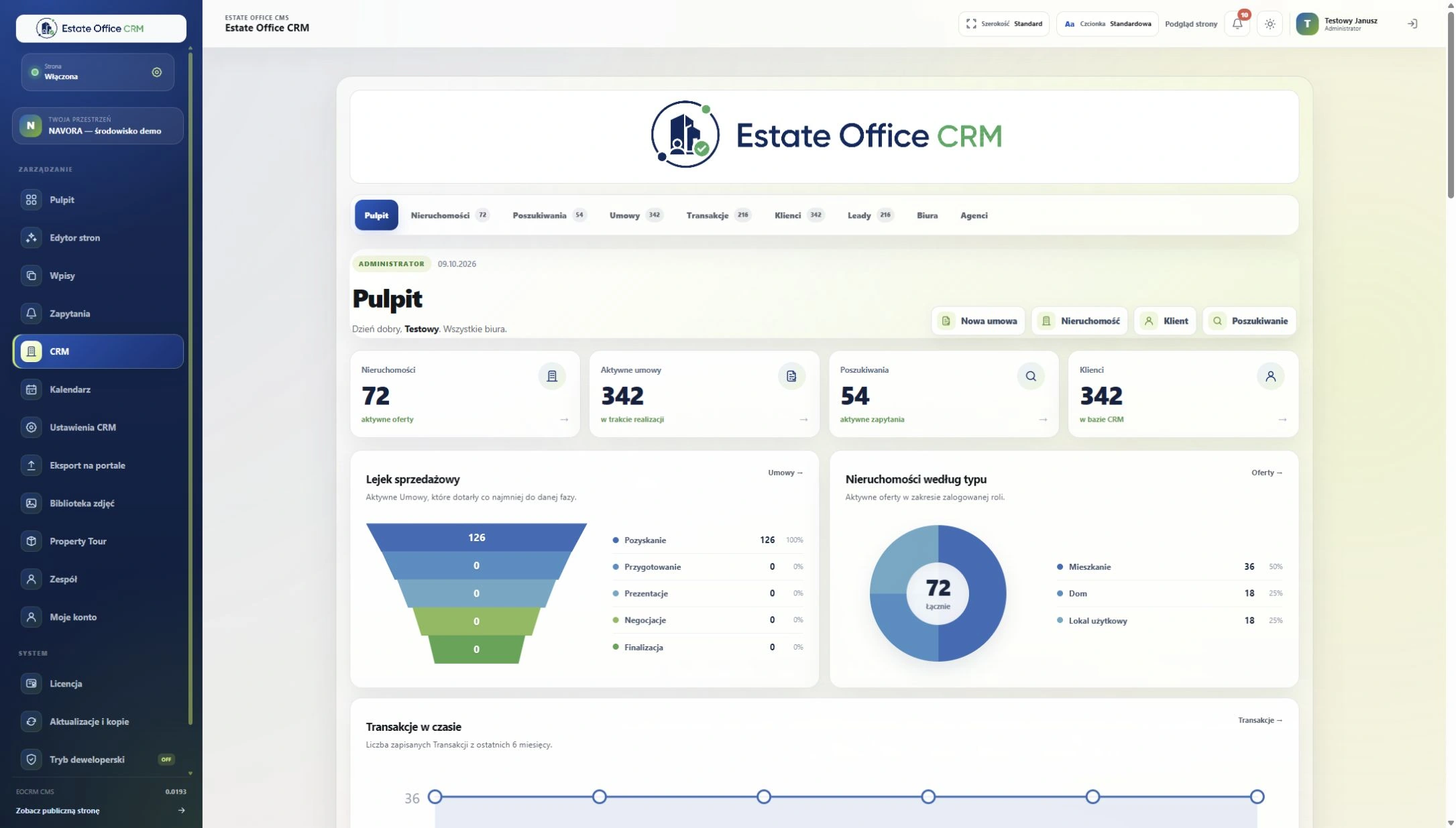 Enlarge screenshot
A client is looking for a home, an agent manages a listing, a manager tracks the process and the agency publishes its website. Total connects these areas so you can find information where it matters — next to the right client, property or agreement.
Contact details, search criteria and listing materials in the context of the case you are handling.
A view of the team, offices, workflow stages, transactions and remuneration.
Your own website and CRM on your chosen hosting, with one place to manage listings.
From enquiry to transaction
Leads, clients, searches, properties, agreements and transactions form a connected workflow. Move from a record to its relevant details and check the current stage of your work together. AML risk assessment (Beta) helps you complete a client questionnaire, prepare a proposed risk level with reasons, and keep an assessment history and review dates. A staff member approves the final assessment — the system supports, rather than replaces, your agency’s procedure.
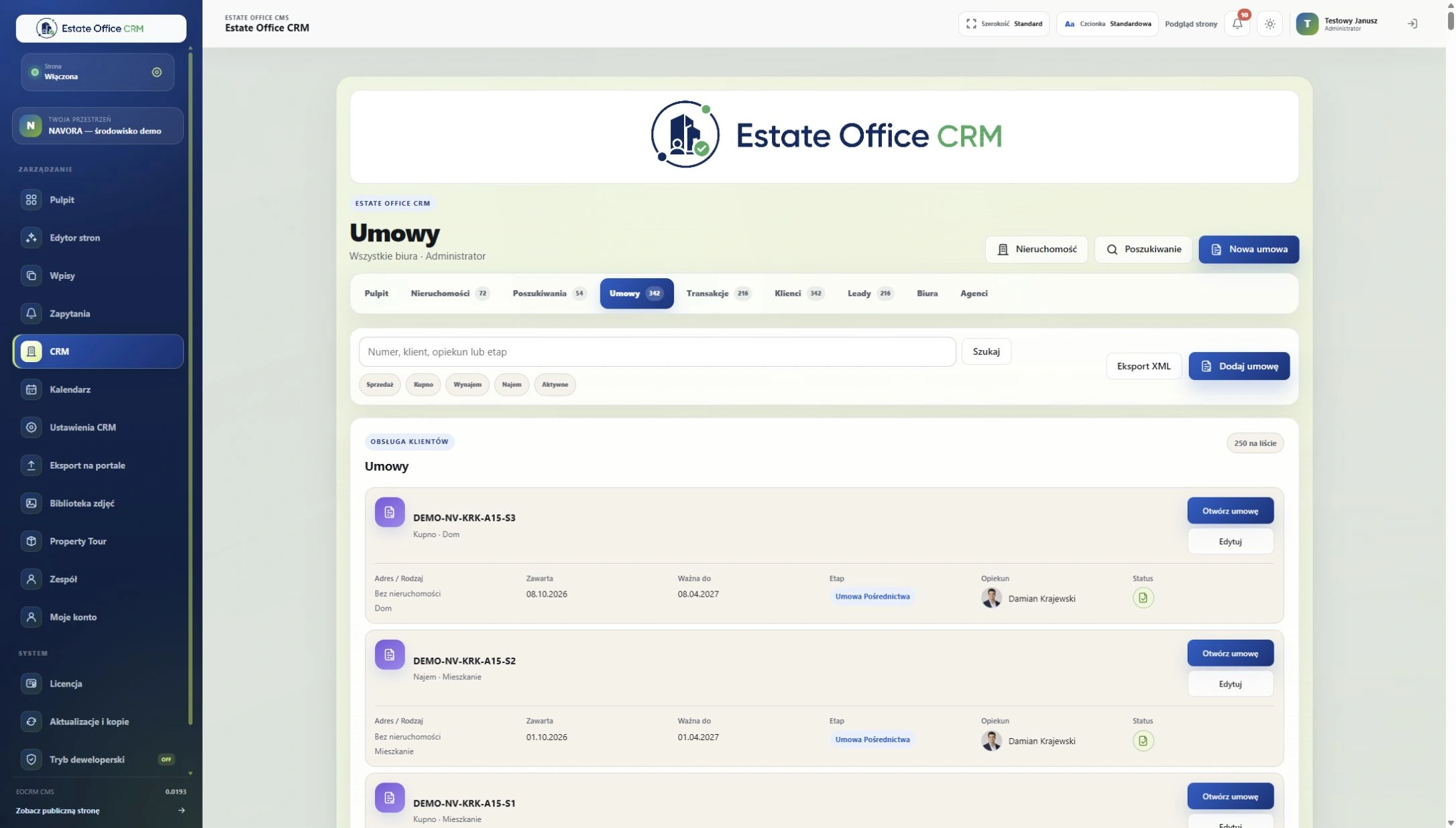 Enlarge screenshot
AML risk assessment (Beta) in practice: from a system proposal to employee approval and the next review.
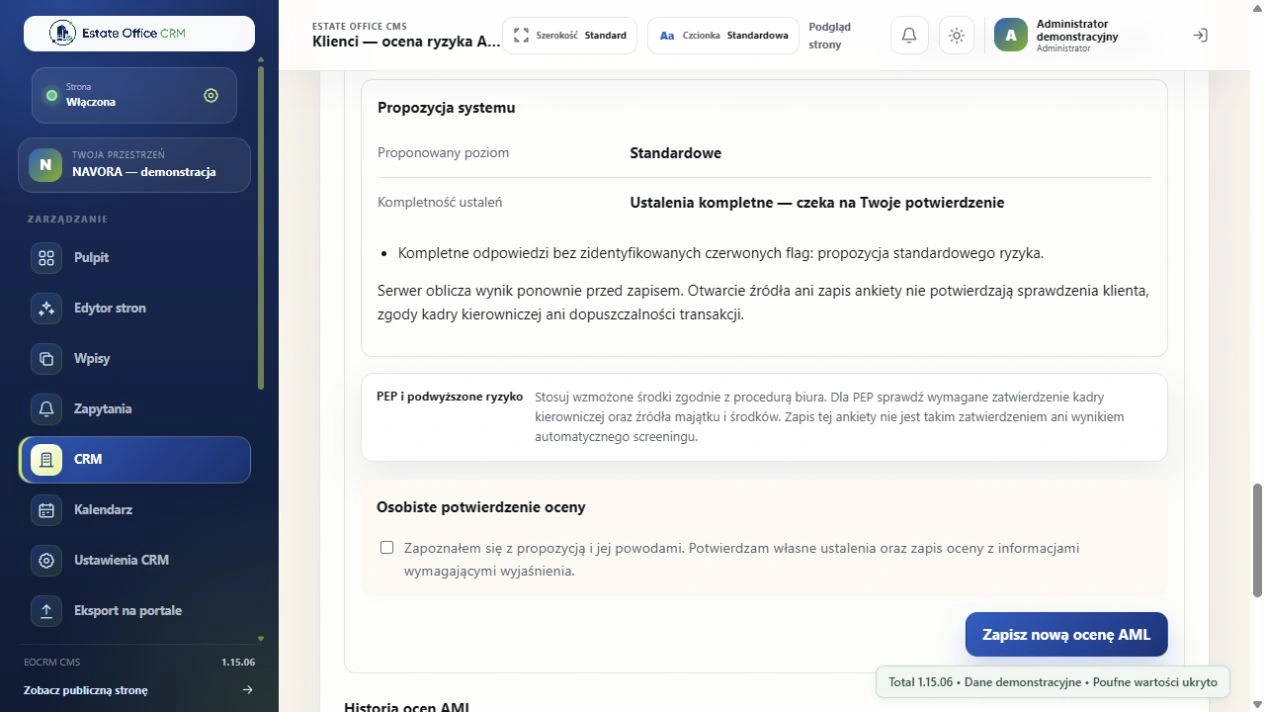 Enlarge screenshot
Review the proposed risk level and its reasons. An employee approves the final assessment using their own findings and the agency procedure.
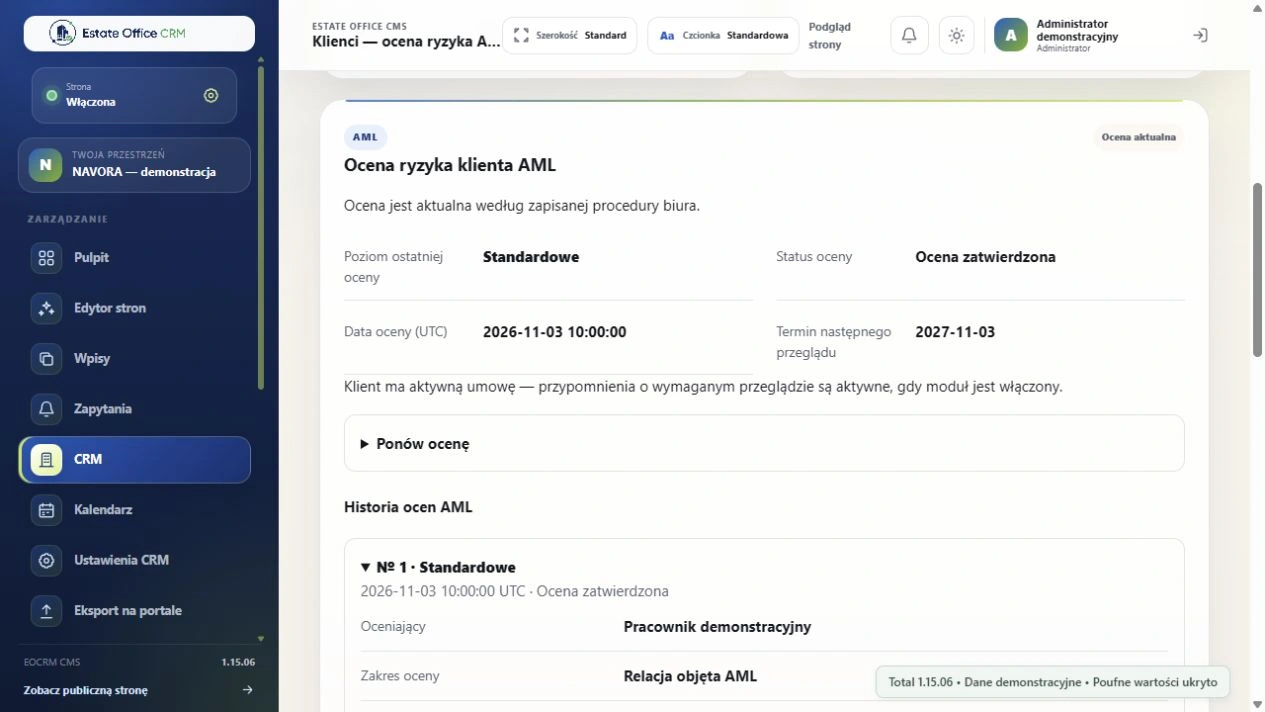 Enlarge screenshot
Return to saved assessments and check the next review date while retaining the context of the client relationship.
Actual Total screens with demonstration data. Confidential data and codes are hidden. Click a screenshot to open it at full size.
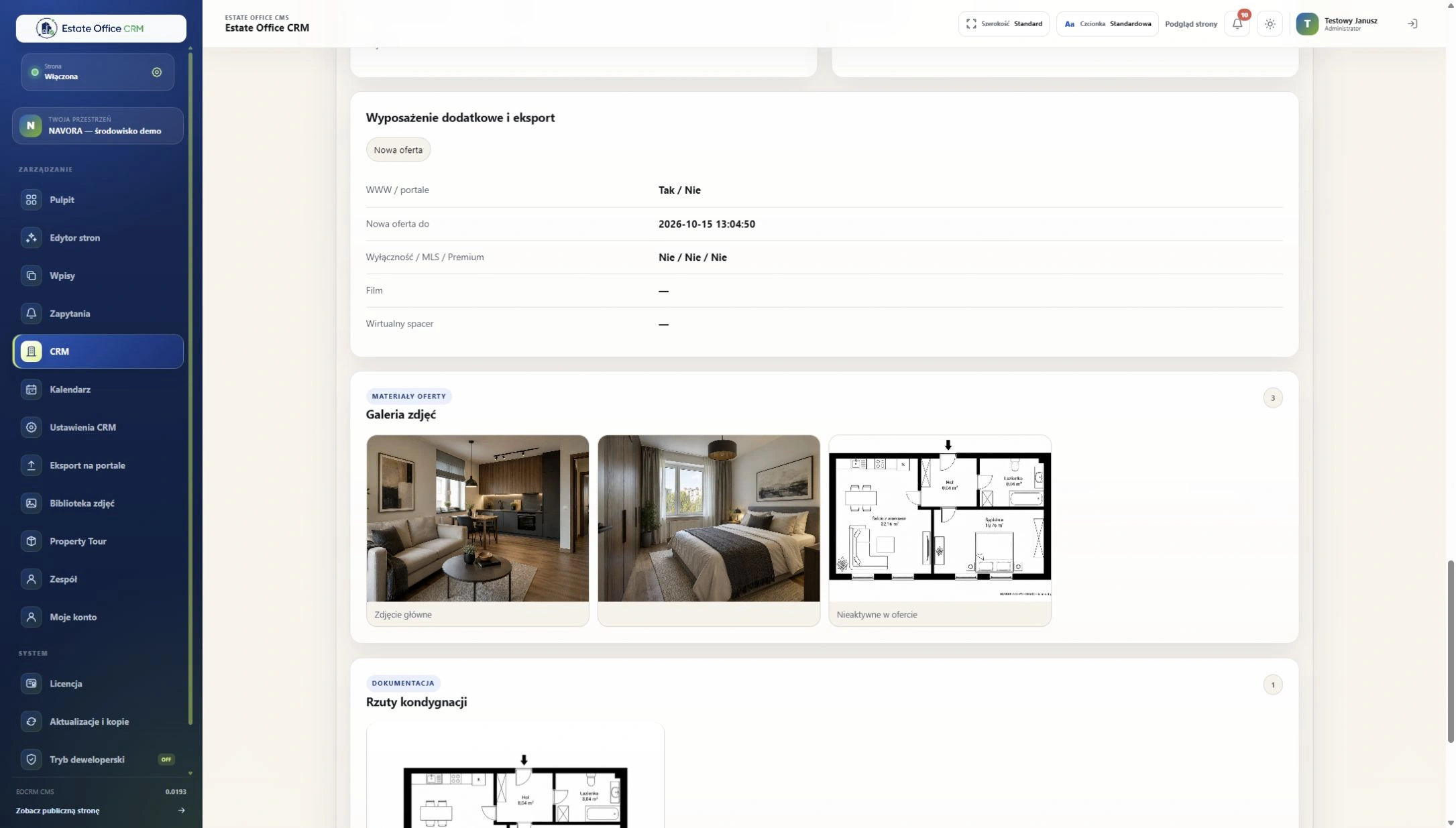
A listing ready to present
Specifications, descriptions, photos, floor plans and location do not need separate folders and notes. Prepare the materials in the property record; the public presentation uses the system's data.
 Enlarge screenshot
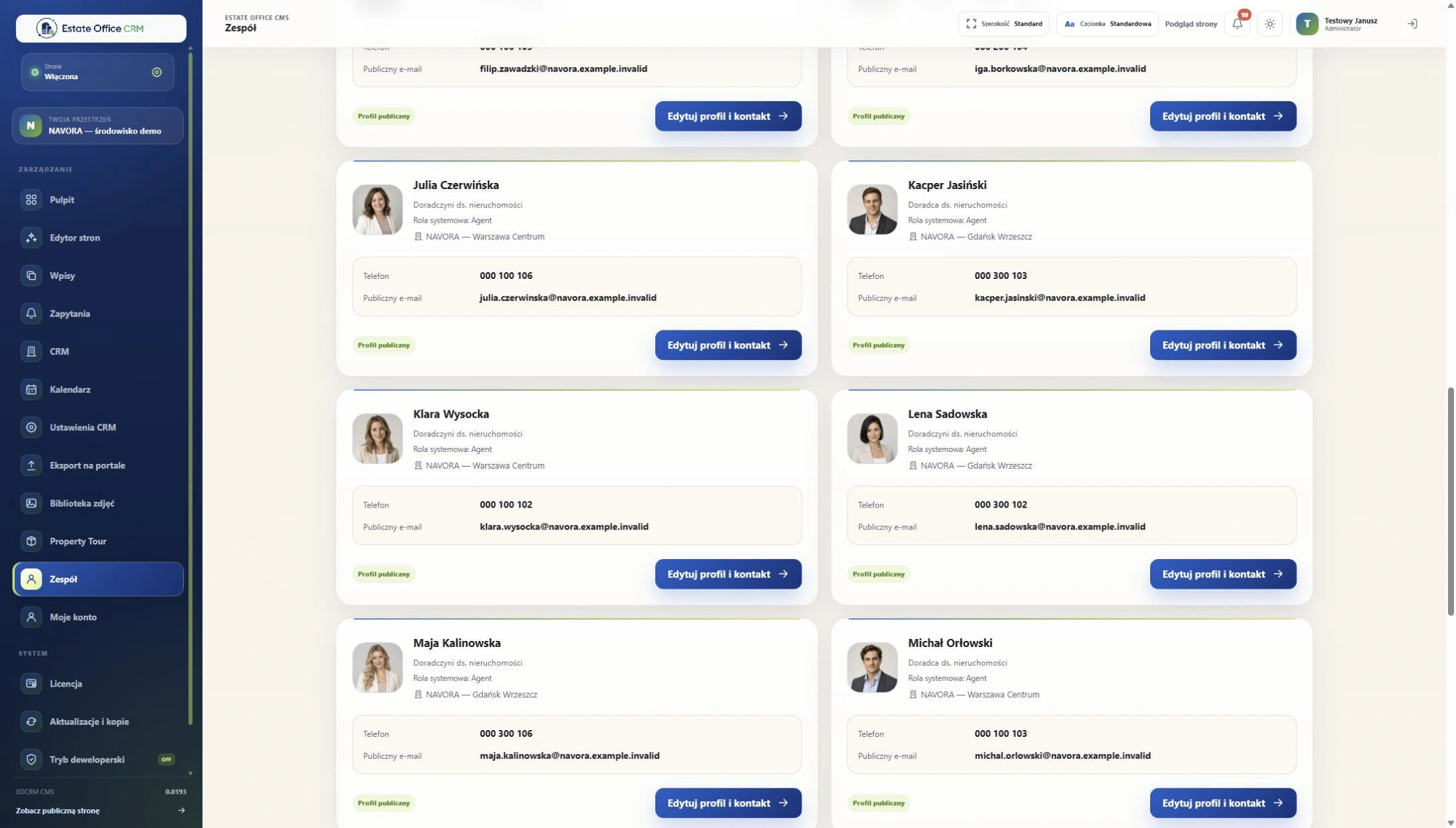
One office or several branches
Organise offices and administrator, manager and agent roles. Use IMAP/SMTP mail and a calendar for events and tasks in the same panel. Google Calendar can be connected after OAuth configuration. Two-factor authentication (2FA) protects access with an additional code from a TOTP authenticator app or email. Administrators can require 2FA for the team; recovery codes are also available.
 Enlarge screenshot
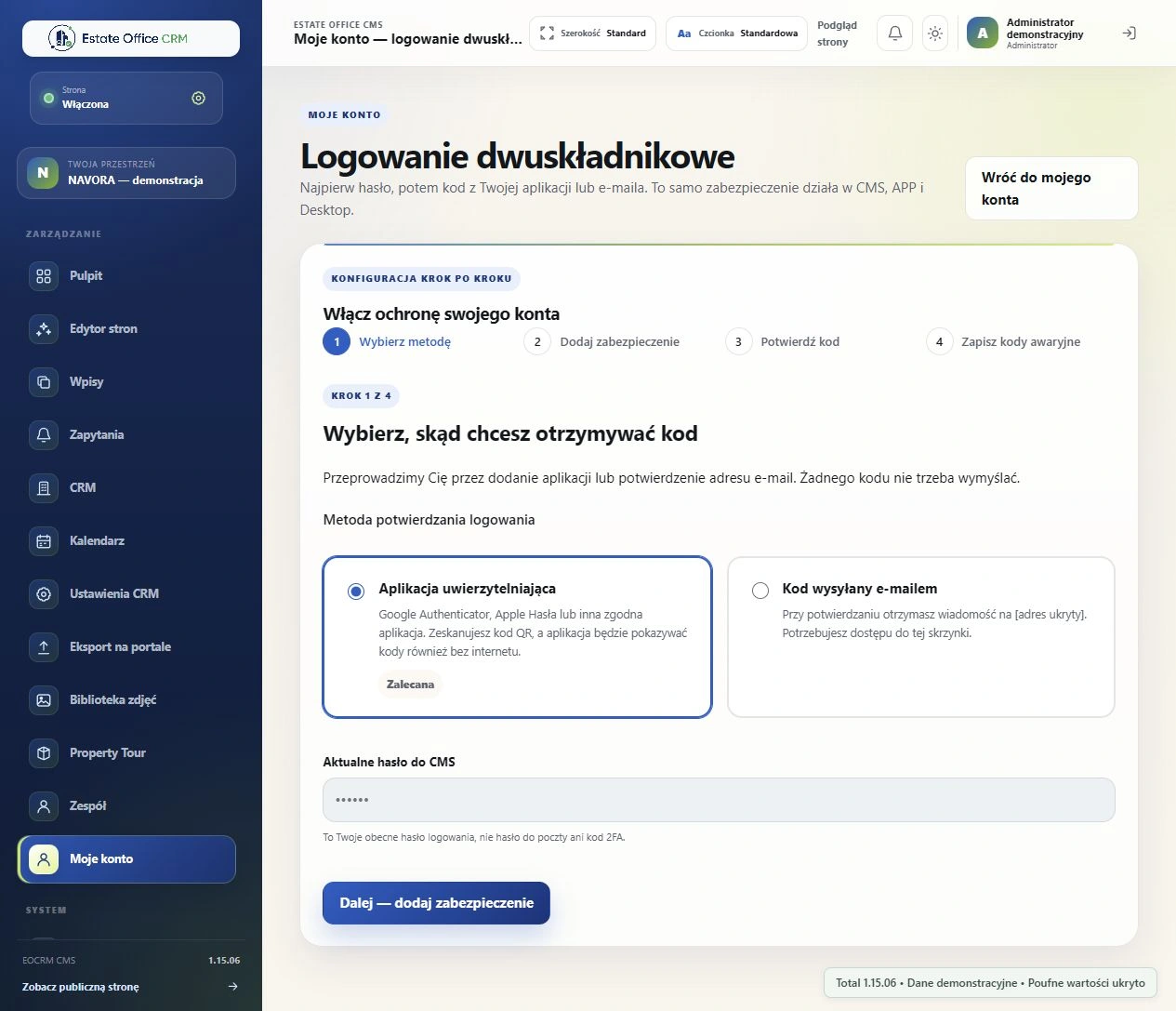
Two-factor authentication in practice: choose a method and confirm access to Total with a second step.
 Enlarge screenshot
The wizard guides you through setting up a TOTP authenticator app or a code sent by e-mail.
 Enlarge screenshot
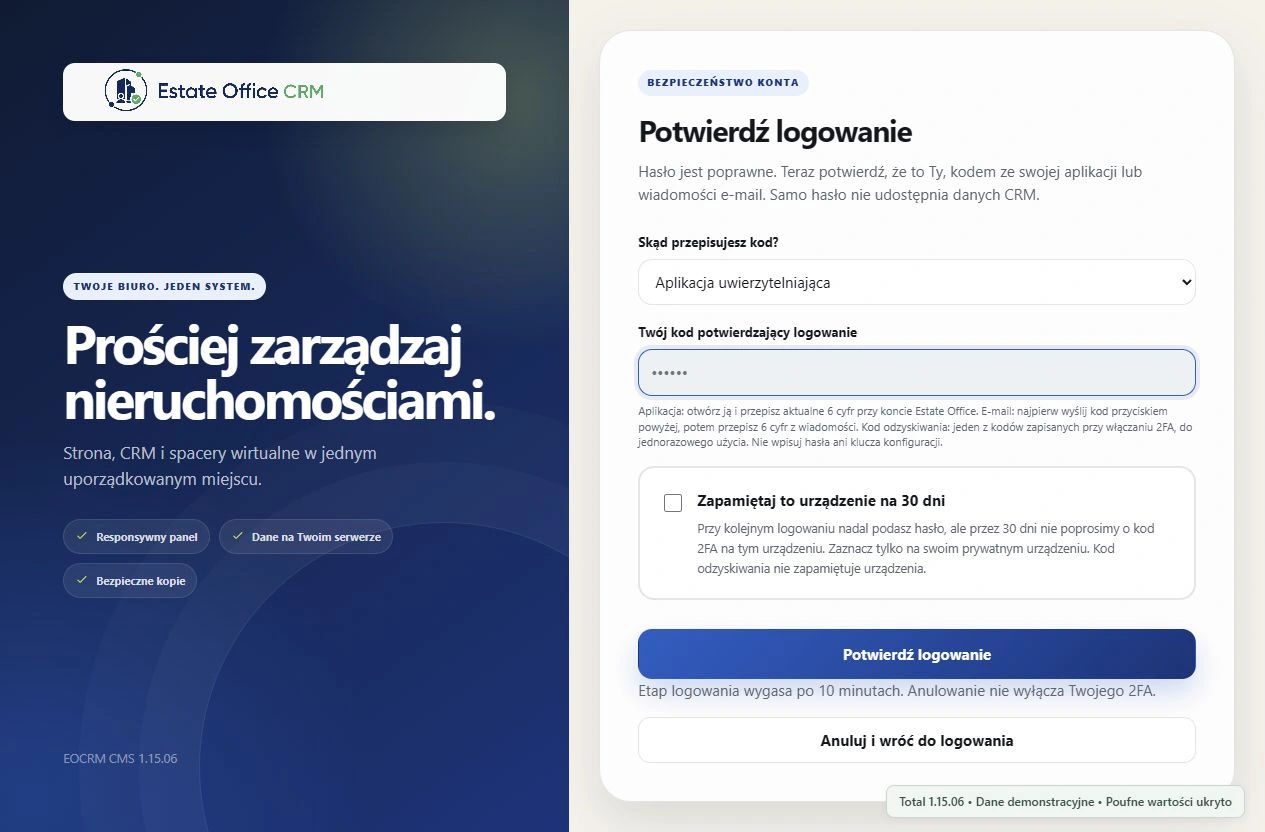
After entering a password, the user confirms access with an additional code. Confidential values remain hidden in the screenshot.
Actual Total screens with demonstration data. Confidential data and codes are hidden. Click a screenshot to open it at full size.
A website without writing code
Choose a starting point, change the style, arrange sections and add your text. Listings and team profiles can use CRM data; extend other pages and posts in the editor.
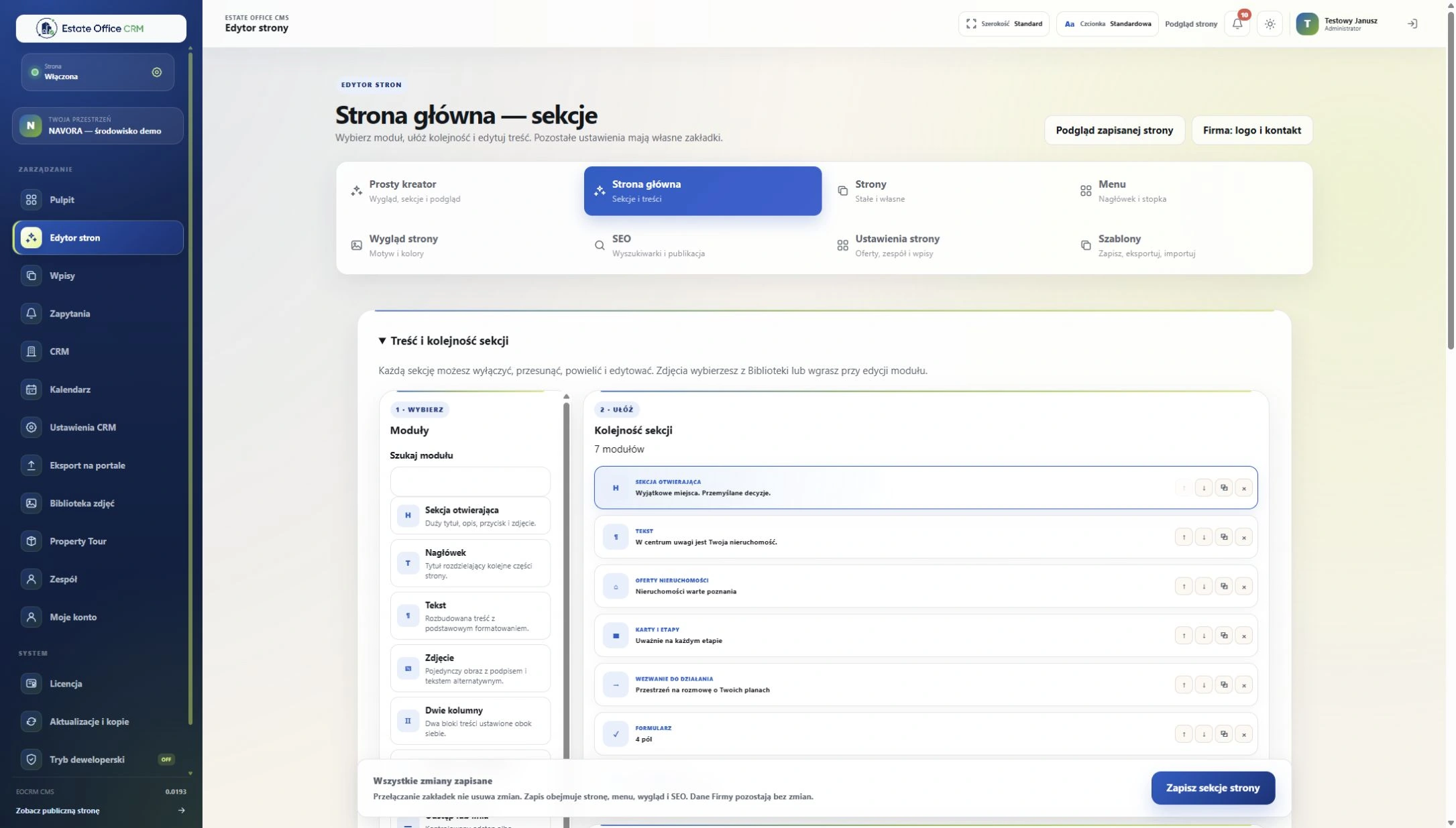 Enlarge screenshot
CRM behind the scenes. Listings in front of clients.
The public property page presents photographs, specifications, description, location and contact details. Filters and the map view help visitors browse the listing catalogue.
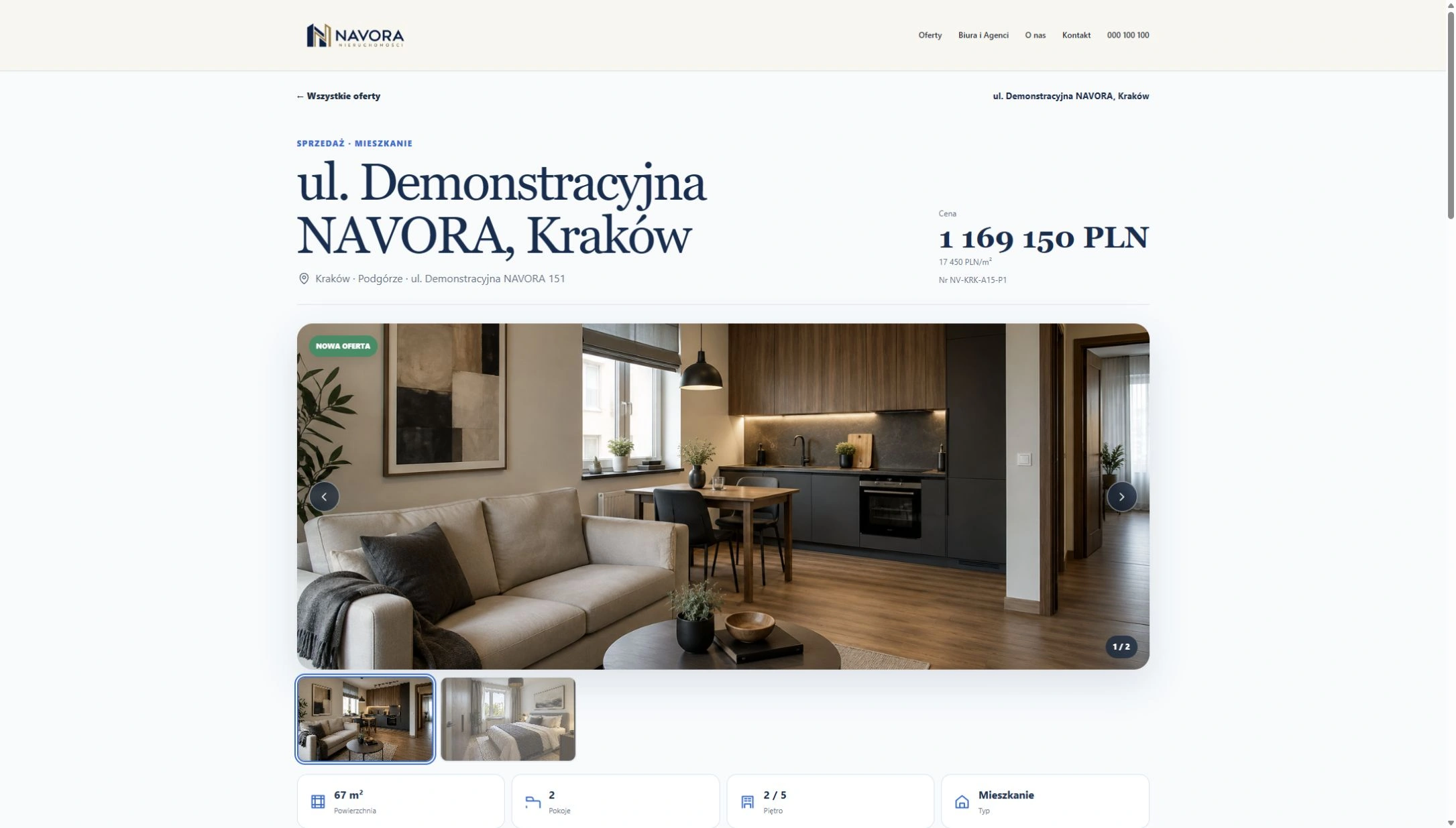 Enlarge screenshot
At your desk and on the move
Android APP and Windows Desktop are integral parts of Total. They use your agency’s server, shared records and the same user permissions. Choose the screen that suits where you work.
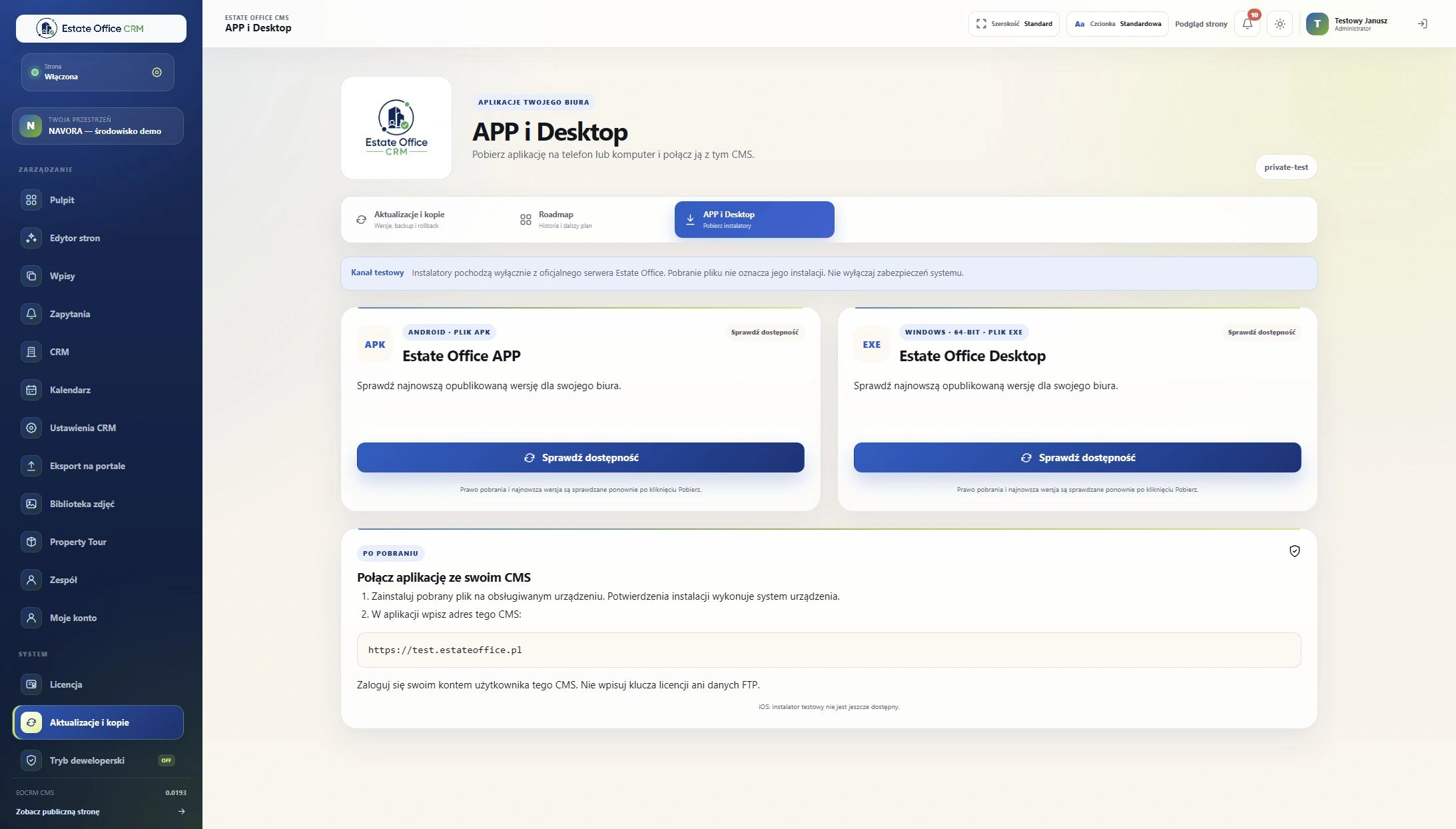 Enlarge screenshot
From installation to your own website
You do not need to begin with an empty page. The installer checks hosting requirements and the builder guides you through the starting point, styling and sections. Review the prepared layout before applying it.
Check the hosting requirements, enter database details and create an administrator account. Your hosting provider supplies the database credentials.
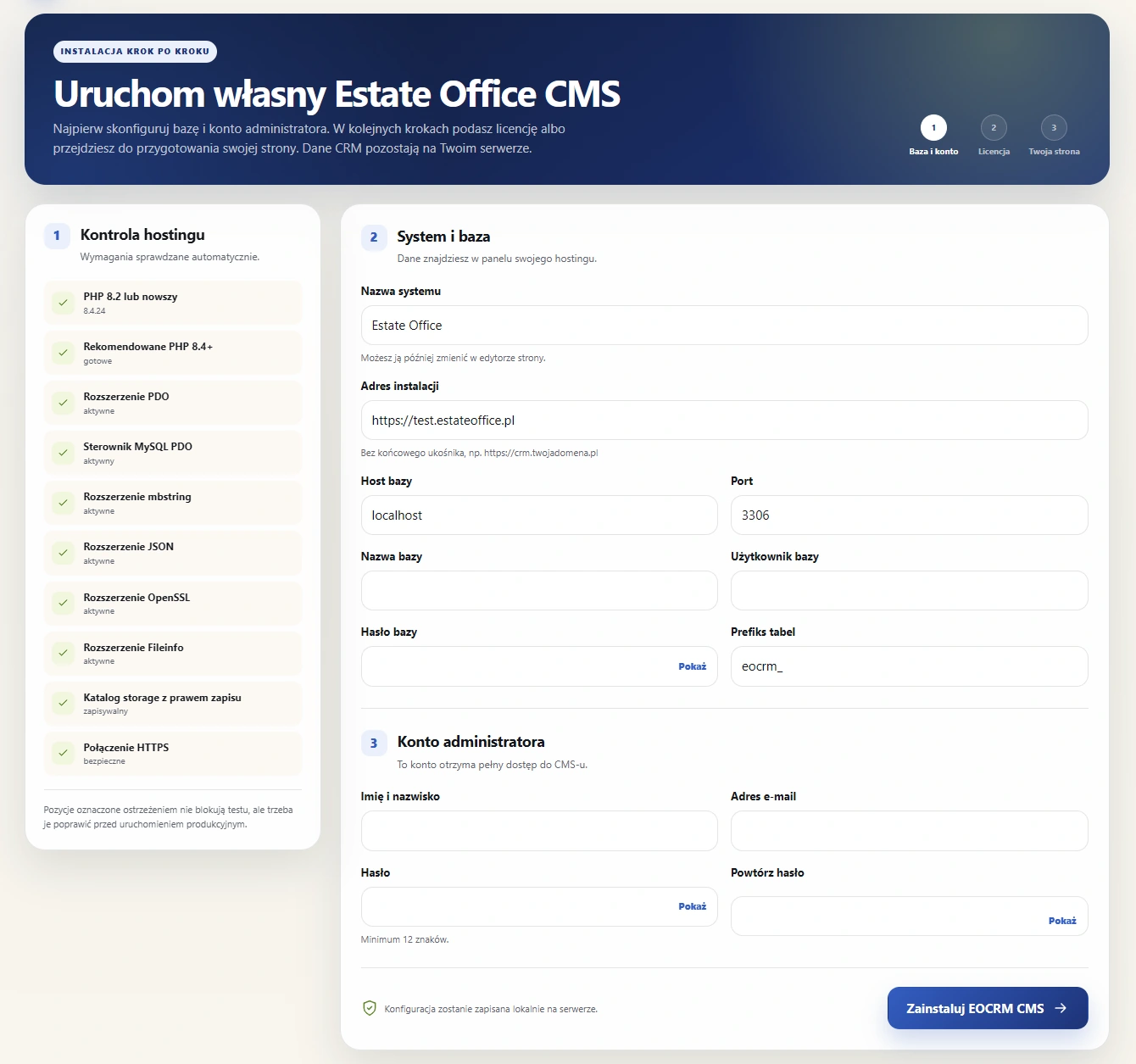 Enlarge screenshot
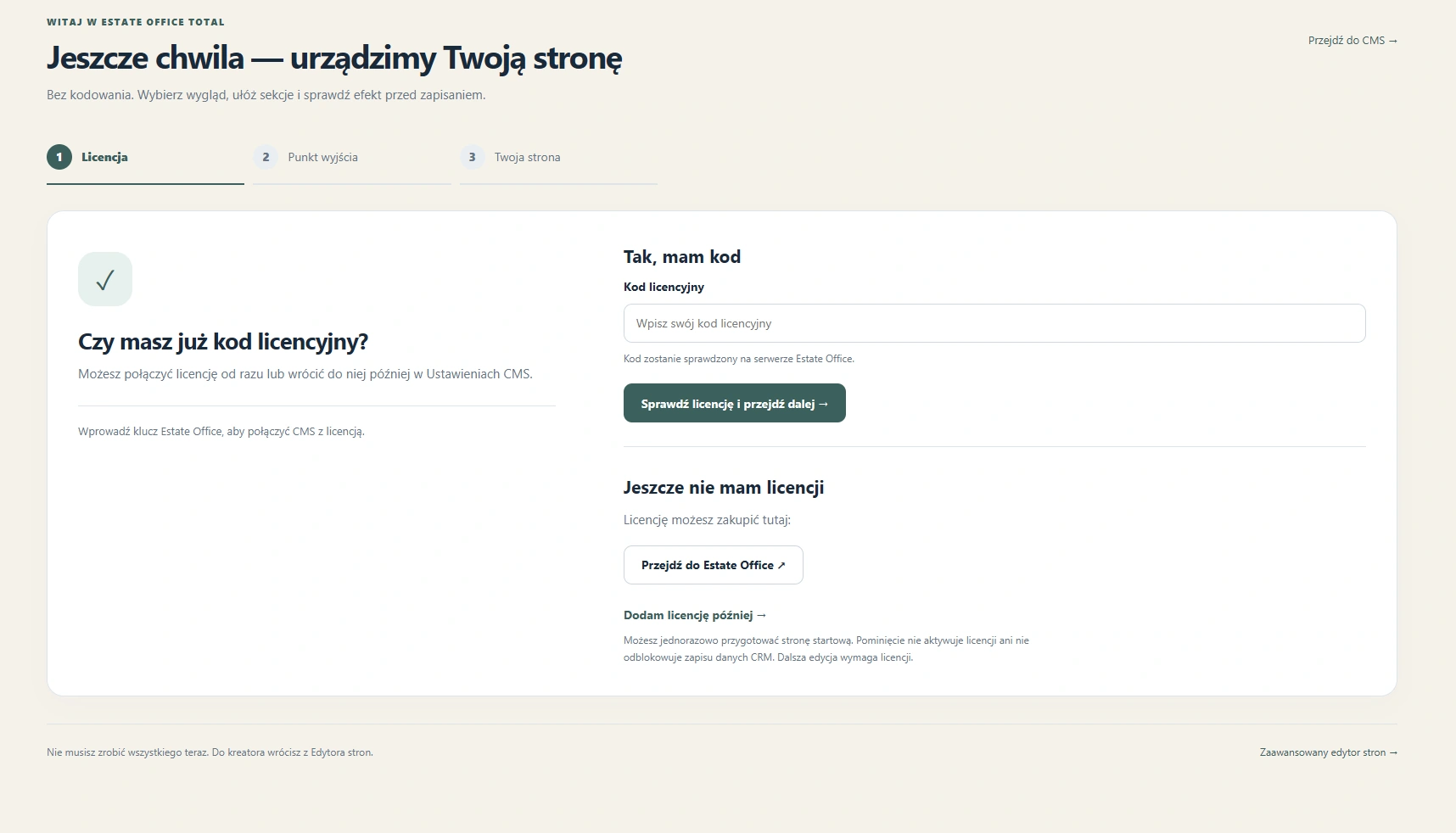
Enter your own licence code. You can defer this step to prepare a starter website once; this does not activate a licence or unlock CRM writes.
 Enlarge screenshot
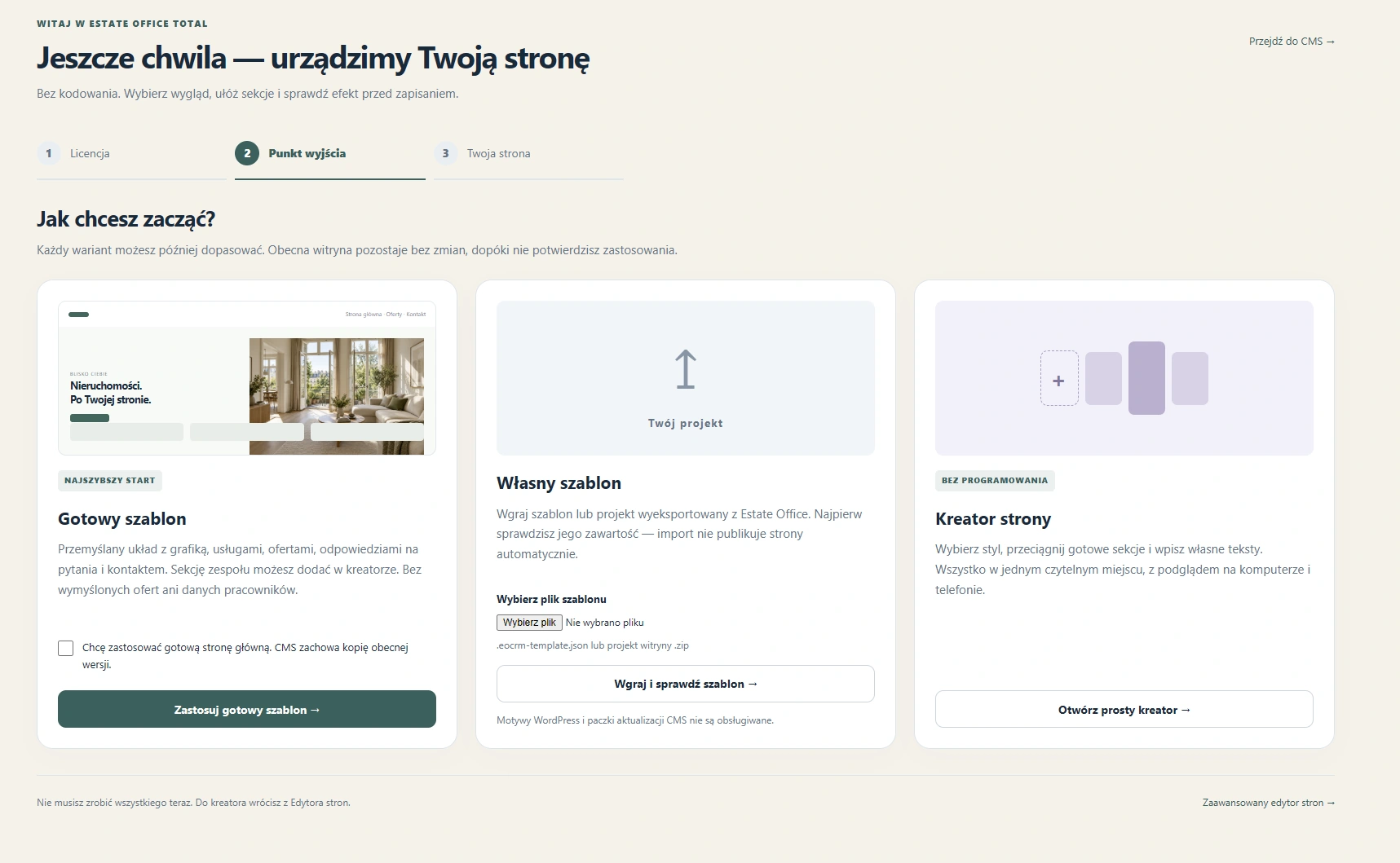
Select a ready-made template, import a compatible Estate Office project or open the simple builder. The existing website stays unchanged until you confirm applying the new layout.
 Enlarge screenshot
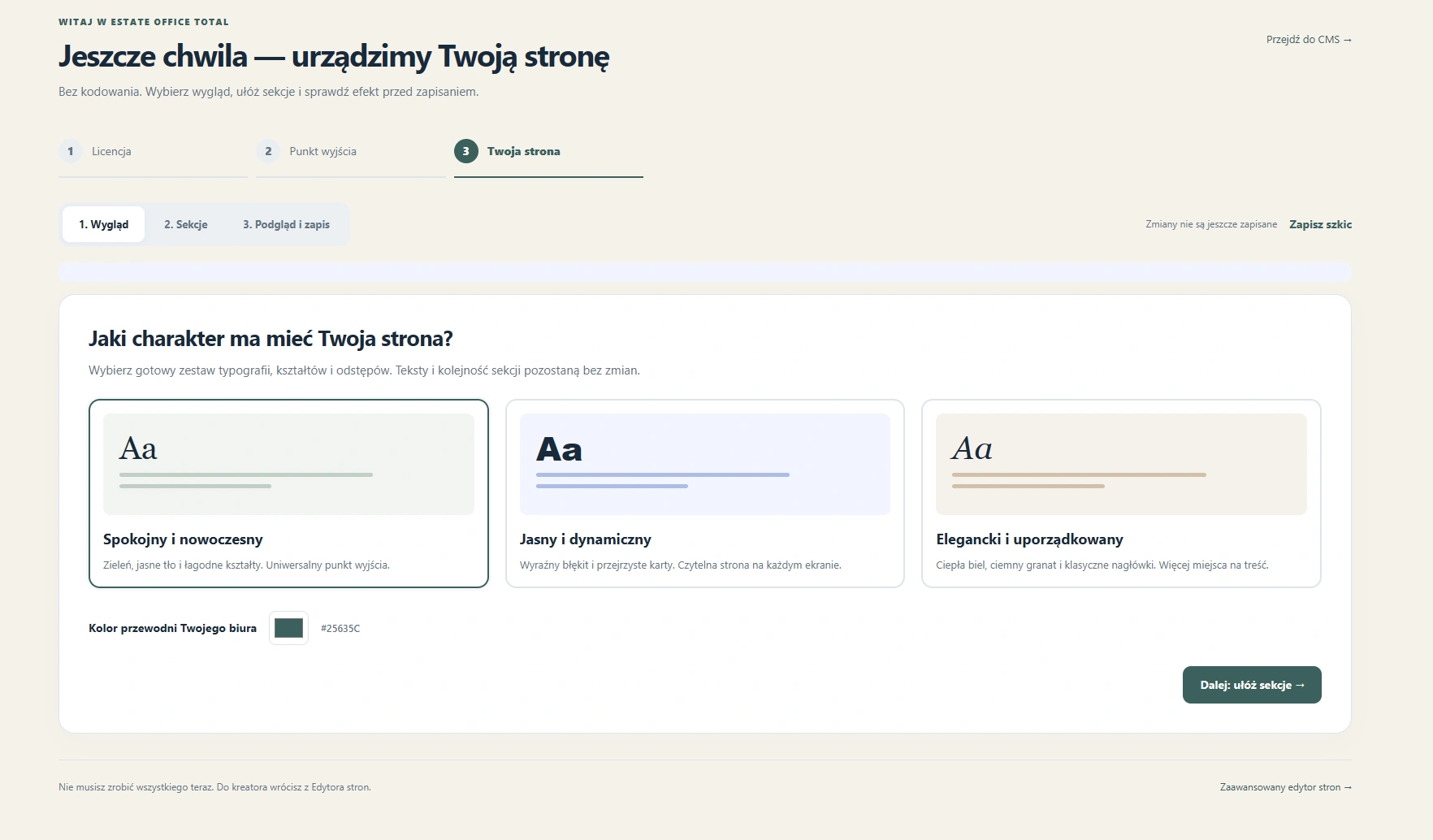
Choose typography, shapes, spacing and an accent colour. Your content and section order remain under your control.
 Enlarge screenshot
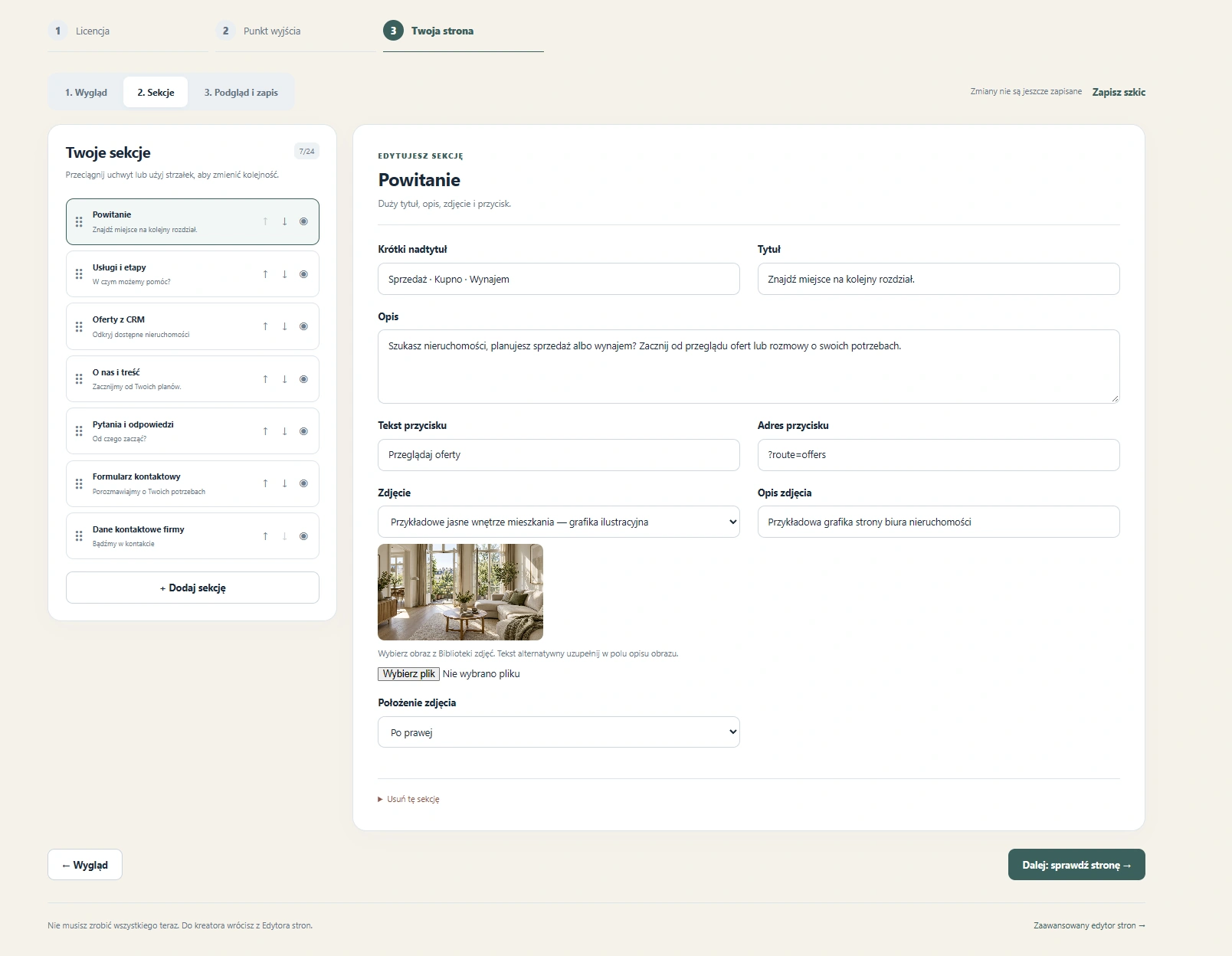
Arrange the welcome section, services, CRM listings, agency information, FAQ and contact. Add your own text and images.
 Enlarge screenshot
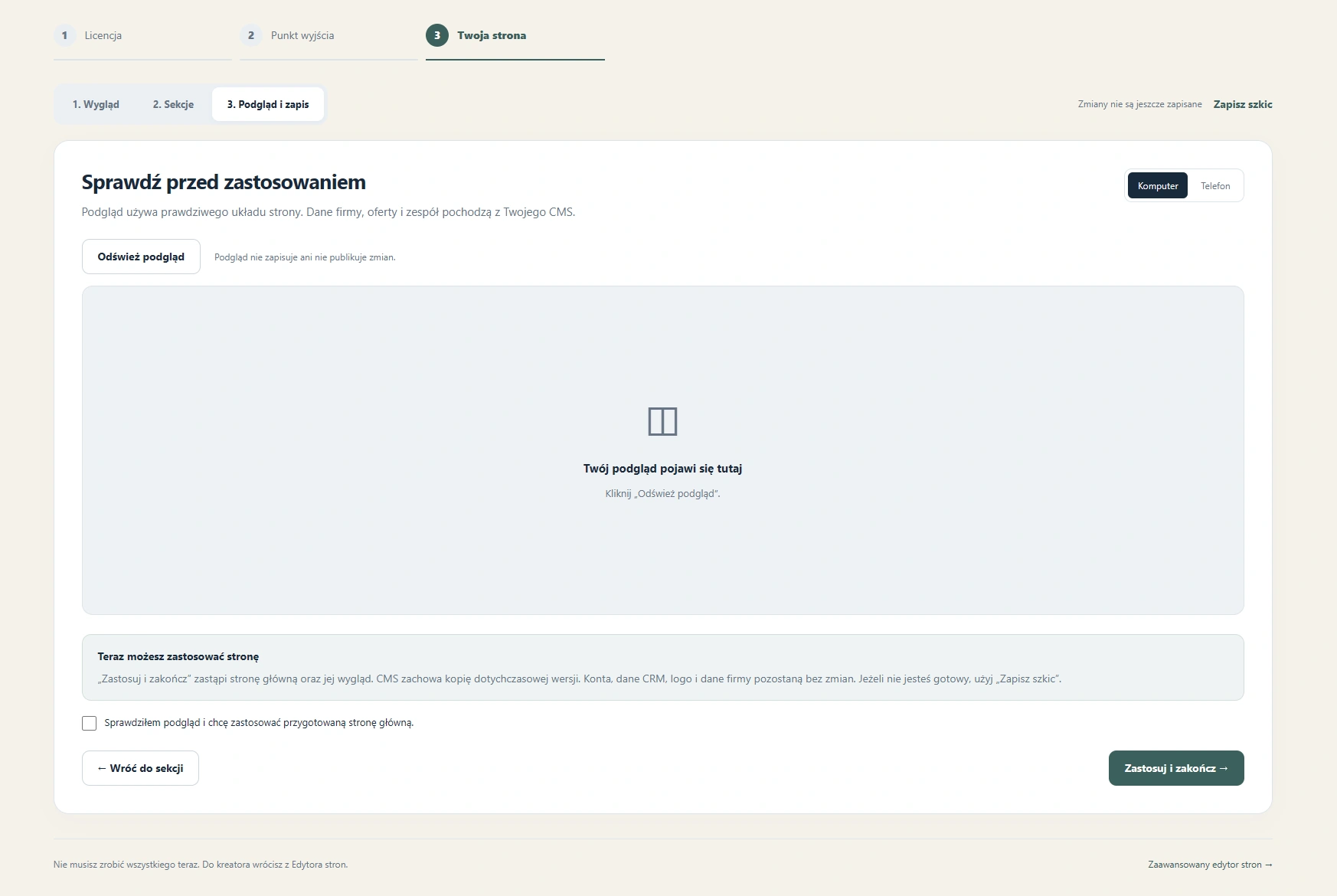
Refresh the preview and check the desktop and phone versions. A preview alone does not publish changes; applying the page requires confirmation.
 Enlarge screenshot
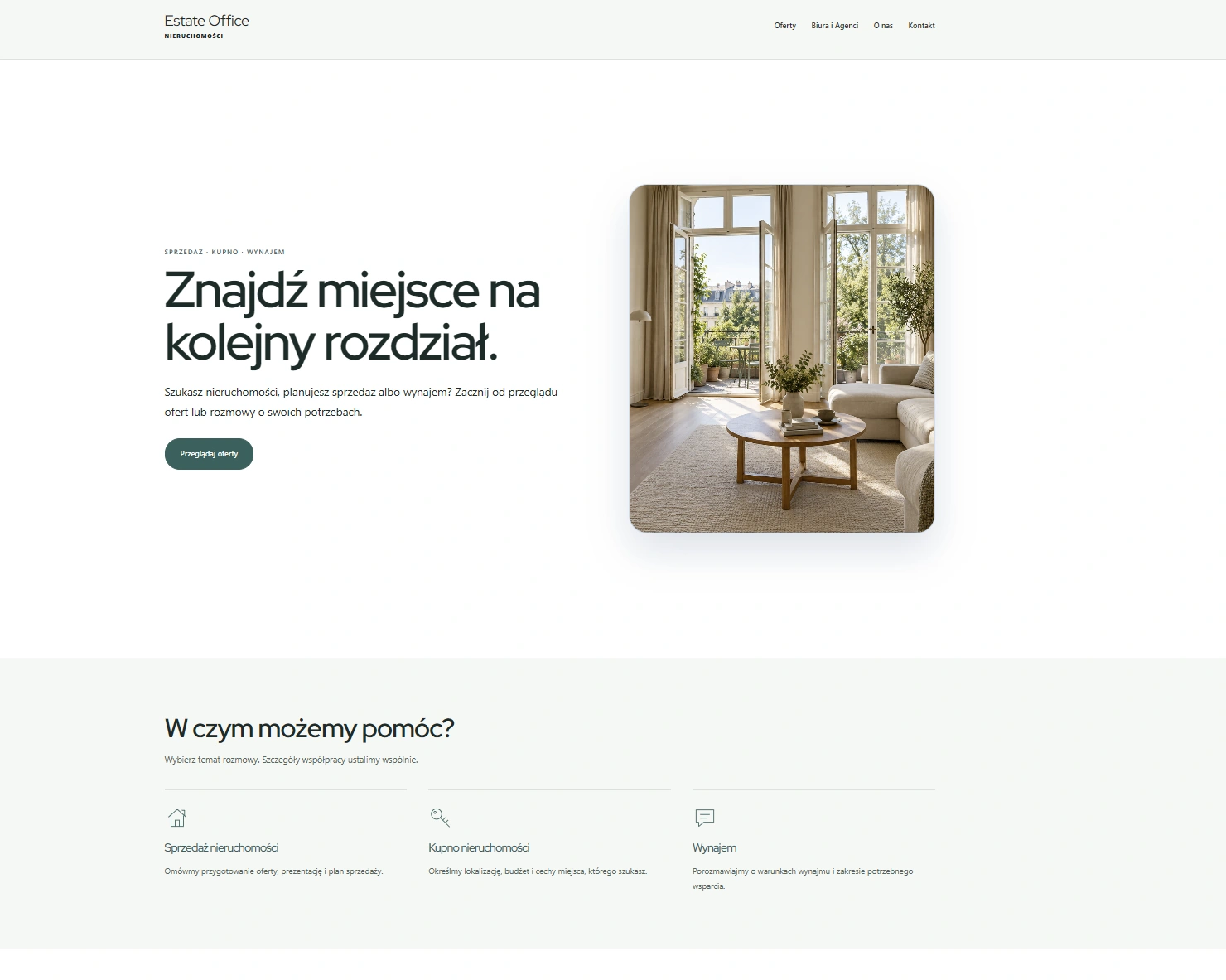
The prepared layout is a starting point. Connect your agency information, develop your offering and return to the editor whenever a change is needed.
 Enlarge screenshot
Explore Total
Enlarge a screenshot and inspect a specific area of the system. These are actual screens, not illustrations of future features.
Enlarge screenshot
Statistics, analytics and a work overview.
 Enlarge screenshot
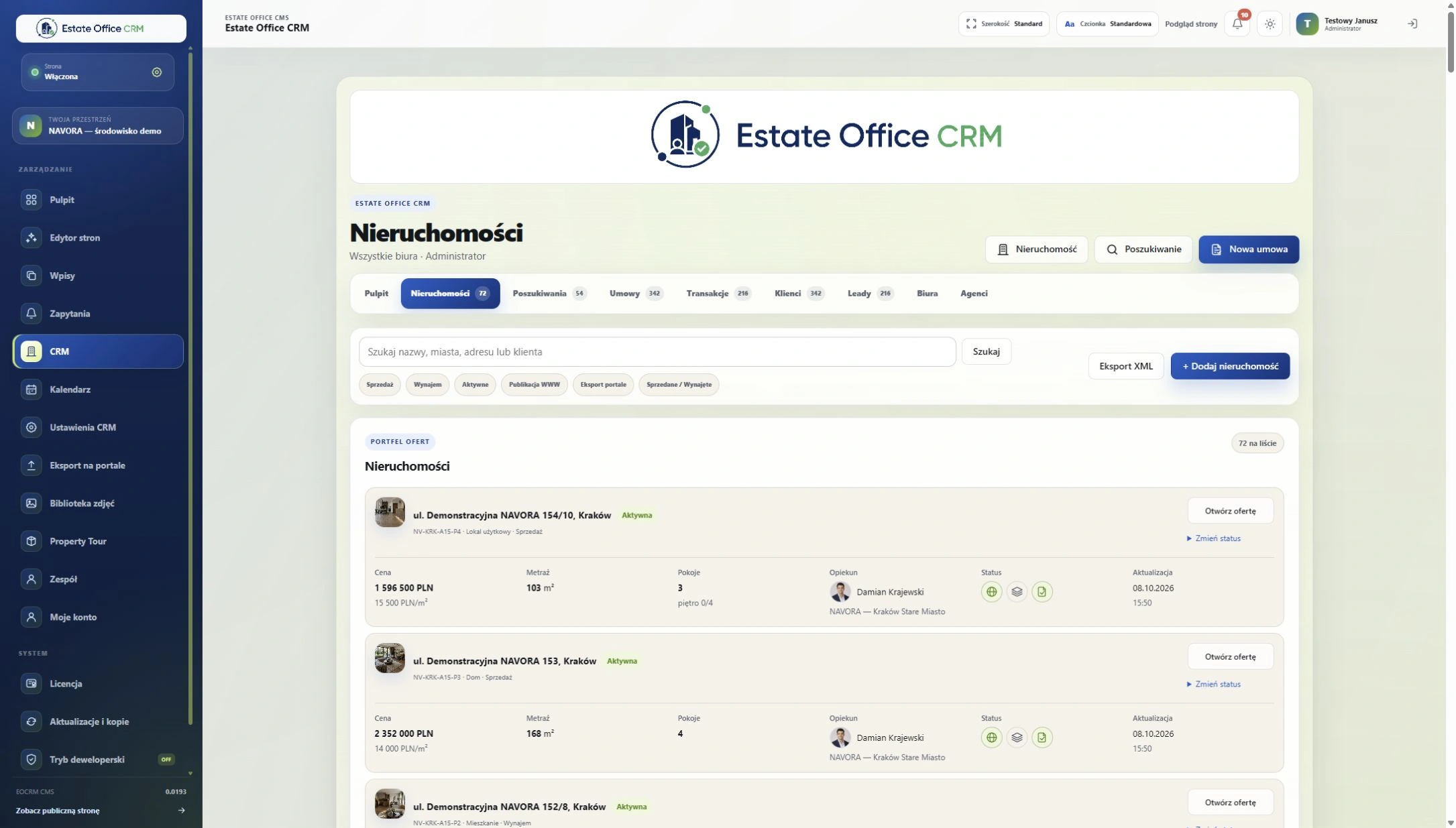
Listing register and filtering criteria.
 Enlarge screenshot
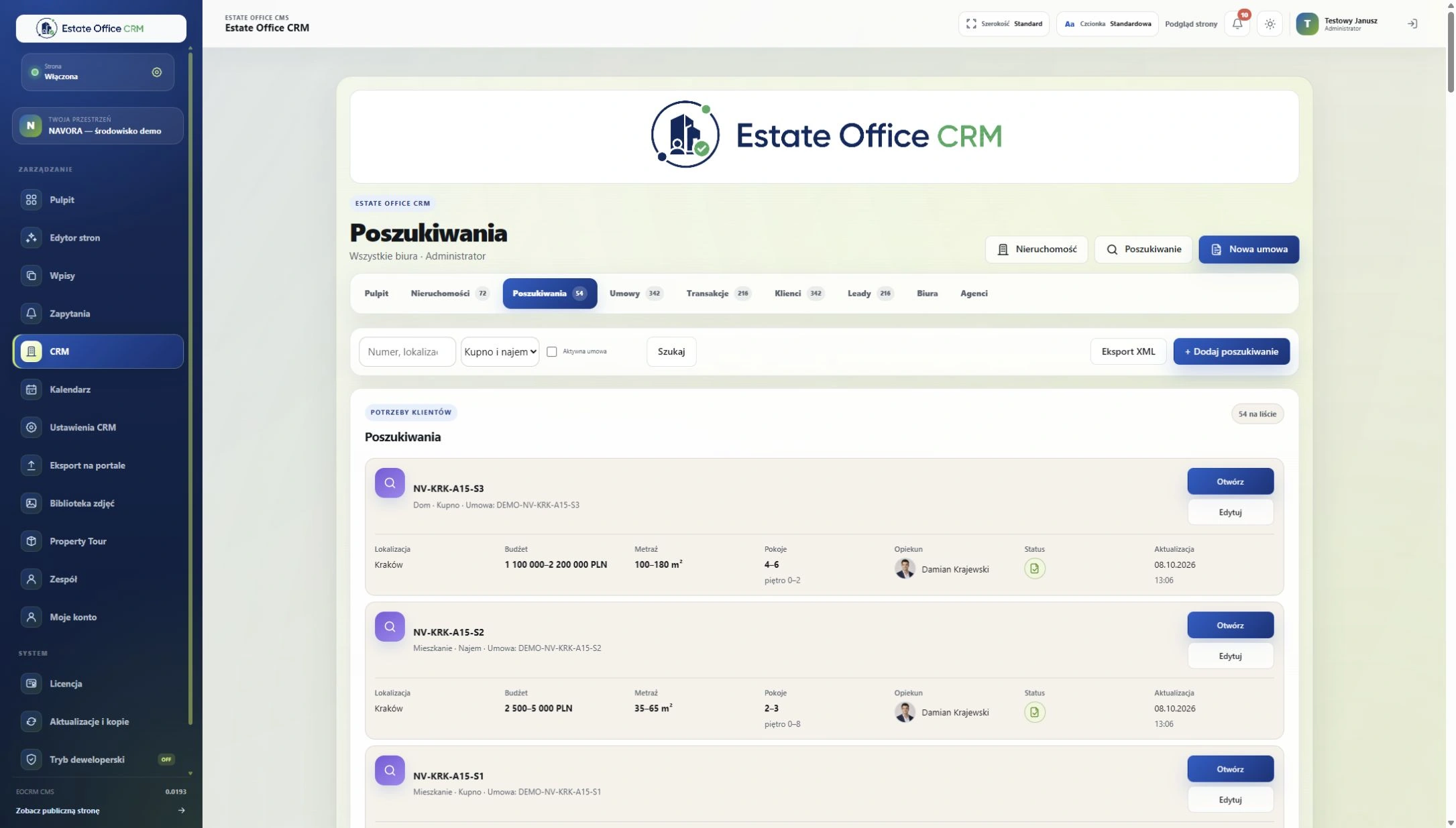
Client criteria and the search register.
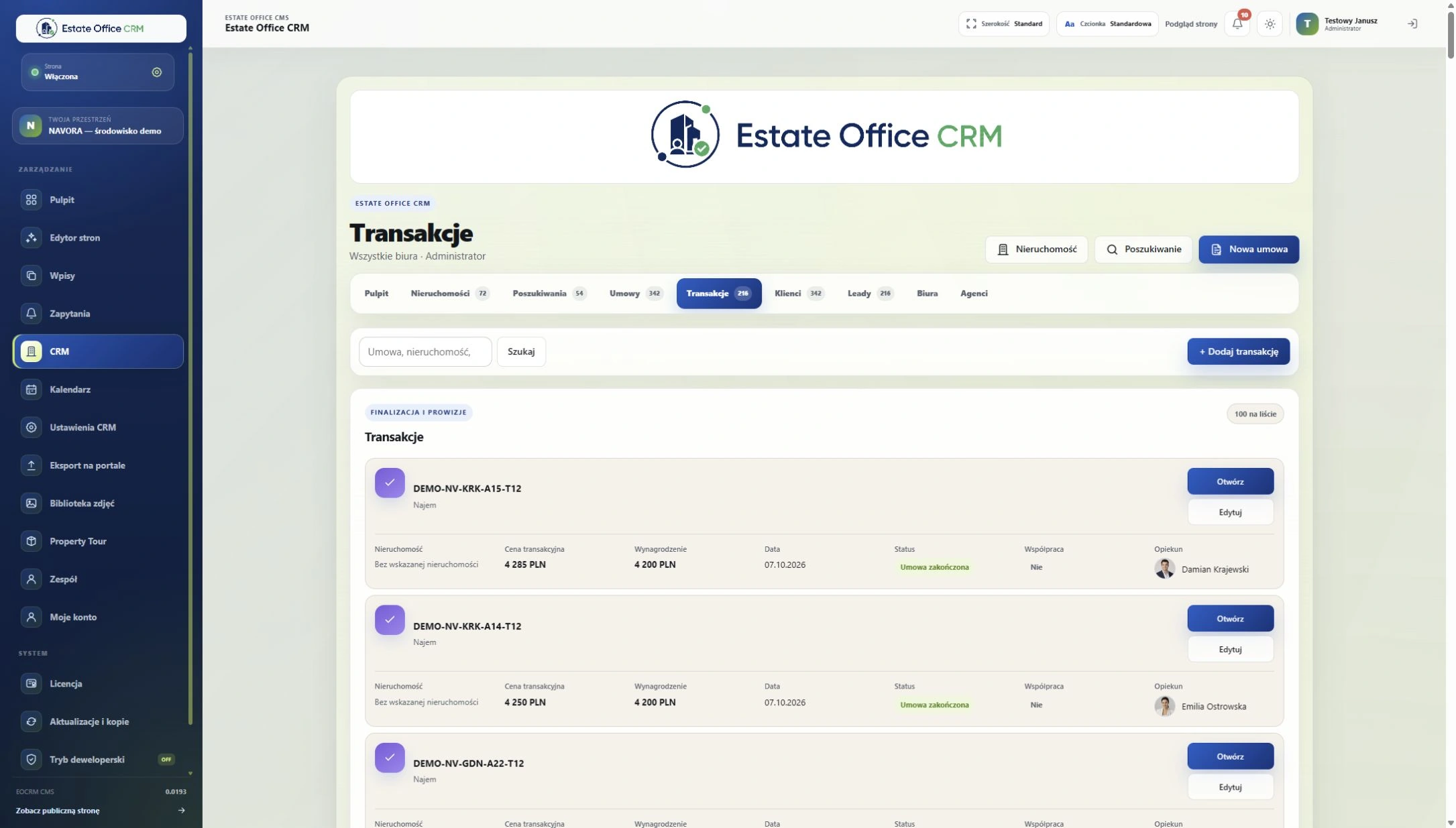 Enlarge screenshot
Prices, commissions and settlements.
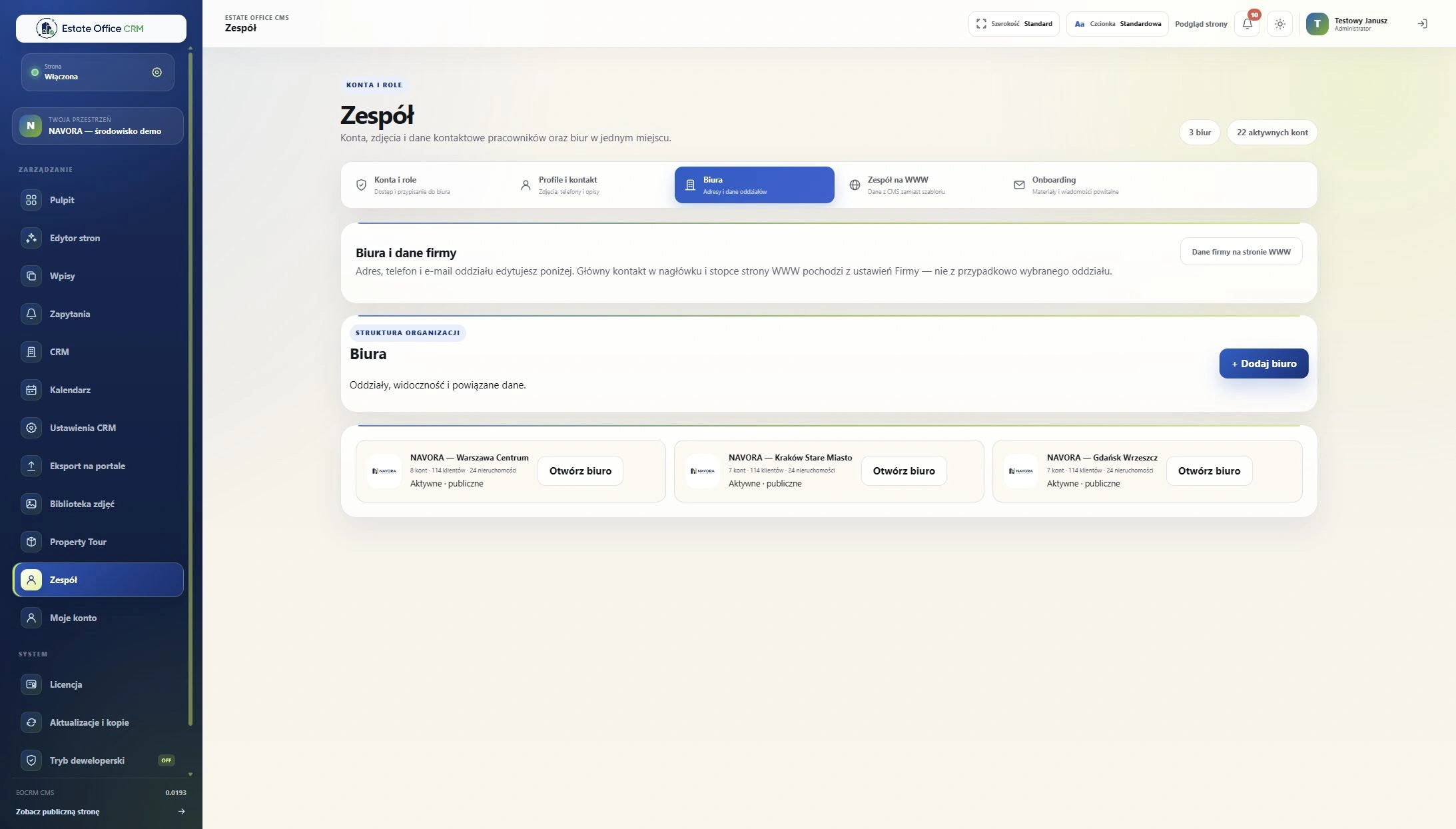 Enlarge screenshot
Organisation of the demonstration team.
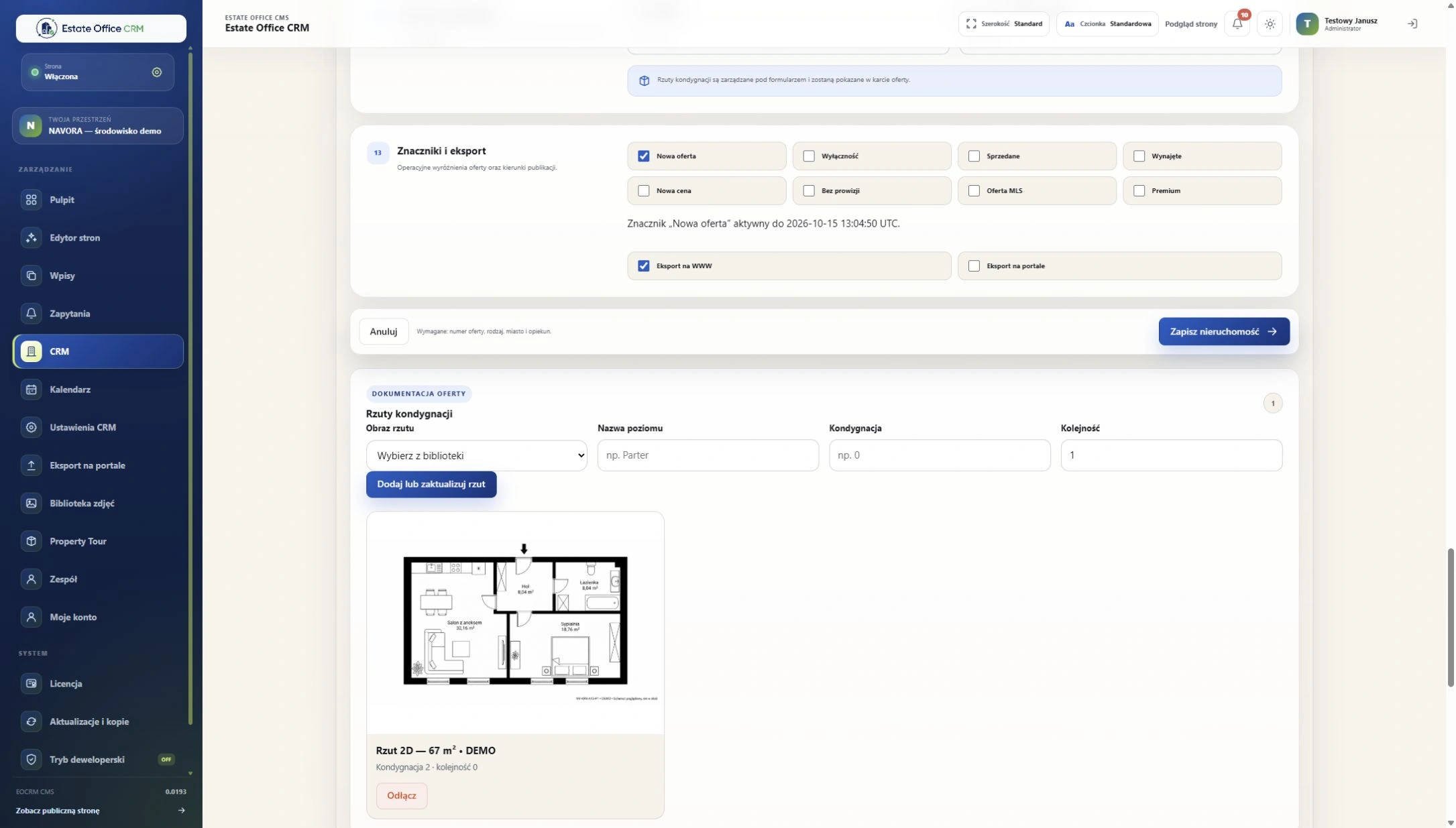 Enlarge screenshot
Materials linked to a specific property.
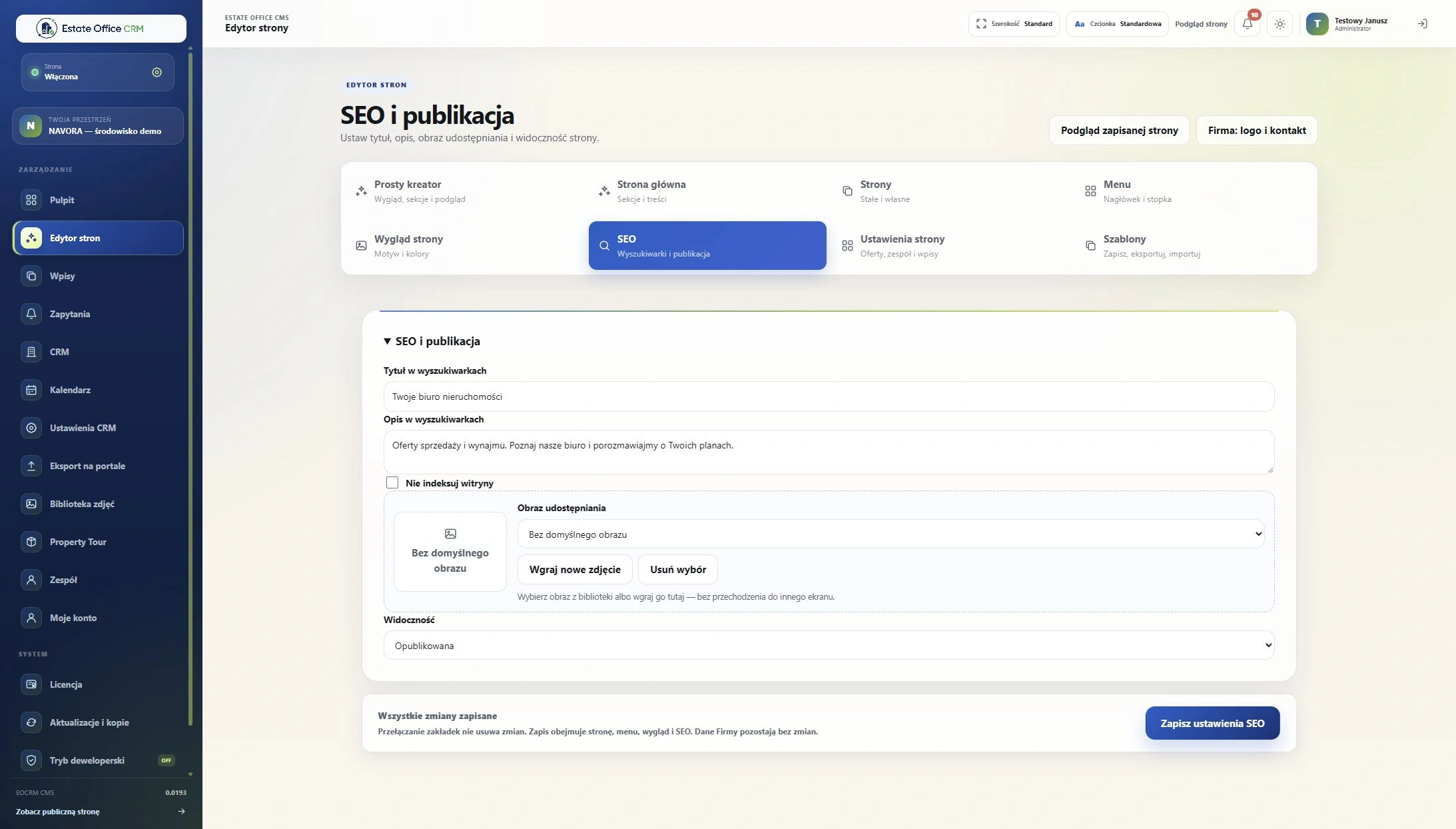 Enlarge screenshot
Titles, descriptions and sharing metadata.
 Enlarge screenshot
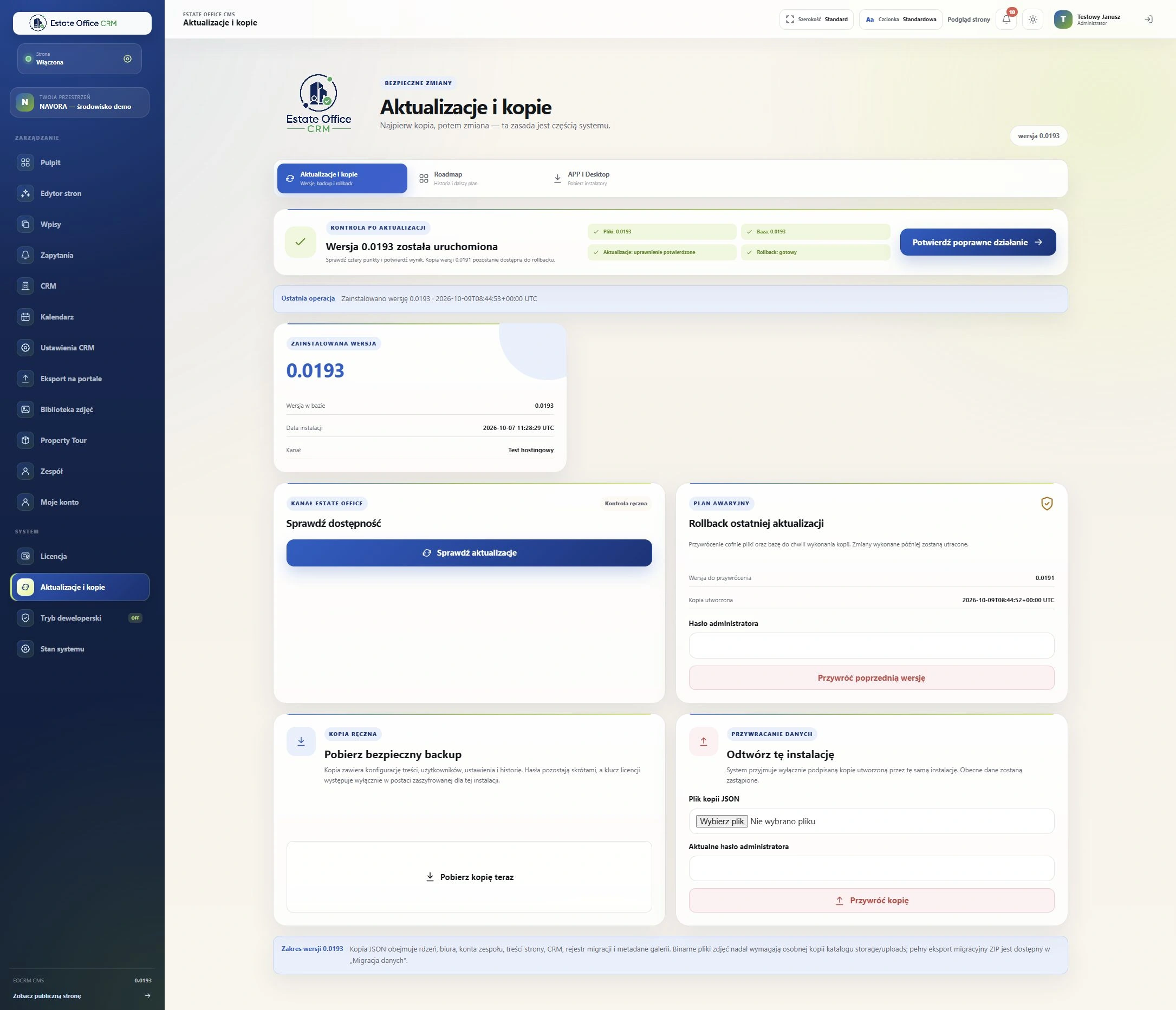
System maintenance from the administrator panel.
These are actual interface screenshots. NAVORA agency data is fictional demo data; installation and builder screens were supplied by the author. The illustrations show the Polish interface.
Install Total on your chosen hosting with PHP, MySQL/MariaDB and HTTPS. Before launch, agree the licence, hosting, migration and testing of the integrations you need. The demonstration data is not a ready-made dataset for your agency.
FAQ
Total is a standalone CMS and CRM installed without WordPress. CRM Wordpress is a plugin for the WordPress environment. The choice depends on whether you want to extend an existing WordPress website or combine your website and CRM in a separate system.
Total runs on your agency's chosen hosting. This is not a default SaaS subscription with hosting included. Server requirements, backups, maintenance and deployment terms are agreed in the offer.
The ready-made template and simple builder let you choose a style, arrange sections and prepare content without writing code. Setting up the database, domain and hosting requires your provider's technical details; you can ask us to carry out the deployment.
Migration possibilities and scope depend on the source data, content, URLs and media. We first inspect a copy and agree the mapping. Installing Total does not automatically import any arbitrary website.
Android APP and Windows Desktop use the agency server and require an internet connection. They do not create an independent offline database. iOS is still in preparation and is not included in the deployment described here.
The NAVORA screens come from a Total demonstration installation. Names, contacts, listings, photos and floor plans were prepared for demonstration purposes. These materials illustrate the interface and are not a reference from an existing agency.
Estate Office Total
Tell us about your team, current website and listing process. Let's agree the deployment scope, hosting requirements and acceptance criteria.